
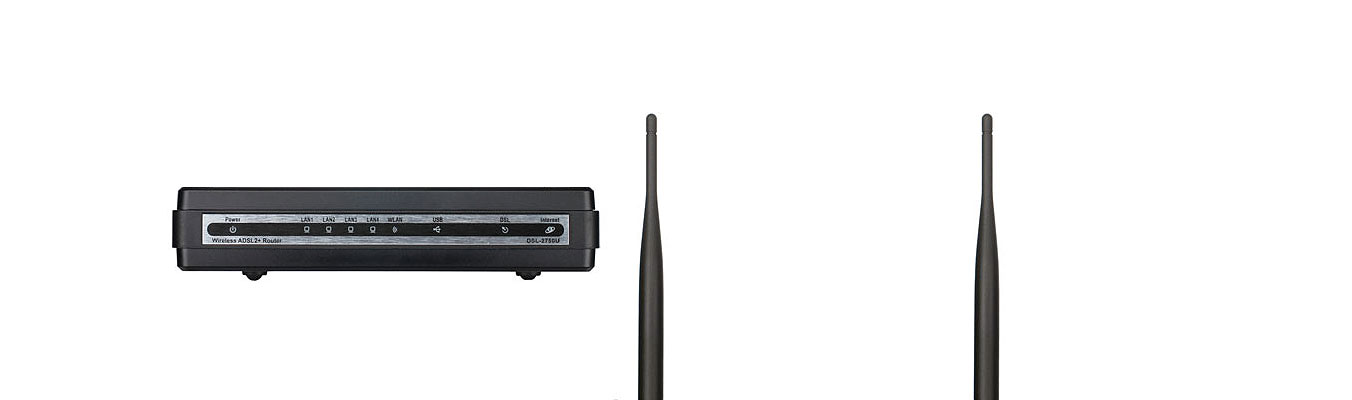
How-to Setup Streamyx Broadband Account on D-Link DSL-2750U Wireless N ADSL2+
It a trending question lately about DSL-2750U. I love my D-Link DSL-2750U and I have not been disappointed by the awesome signal inside and outside my house.
This is how I setup my D-Link Wireless N ADSL2+ Modem Router. I normally do not install any software from the CD that come with the unit.
Streamyx Account
Please make sure you have your details ready — check your Streamyx application form which you have pre-select during registration with Telekom.
- Streamyx Account Username (users@streamyx)
- Streamyx Account Password
Login to your D-Link DSL-2750U Modem with Mac OS or Windows
Step One
Please log in to your modem with standard Username & Password.
Open your browser and enter http://192.168.1.1
- Username: admin
- Password: admin
- Validate Code: Enter what you see on screen

D-Link DSL-2750U — Setup
Step Two
Go to the SETUP > Setup Wizard

You will go through 5 simple self-explanatory processes.

D-Link DSL-2750U — Change Modem password
Step Three
Type in your current password (admin) and replace it with your desire new password.

D-Link DSL-2750U — Set Time & Date
Step Four
I let mine automatically retrive and update time & date via dlink.com

D-Link DSL-2750U — Setup Streamyx Connection
Step Five
You should use PPPoE. Some may find PPPoA can be use without a problem, always stick to PPPoE if you are not sure.
Select from the drop down menu
- Country
- Internet Service Provider
- Protocol
The rest — You should stick to the default setting.

D-Link DSL-2750U SSID Setup
Step Six
Give your network a unique name (SSID) and choose a password for your network (WPA2)

D-Link DSL-2750U — Check your Setting and Complete
Last Step
Verify your setting and hit okay and you’re good to go. Your modem will now automatically reboot and will start connecting to the internet.

Trouble Shooting
If you follow the instructions and your telephone line is in working order, you should have no problem getting your modem to work.
Still having trouble?
- Make sure your Streamyx Account has a correct User ID & Password. Try log on to your Streamyx Account.
- Make sure your Modem DSL light is stable/ On.
- If Your DSL light is stable — light indicator on “Internet” should “blink” to establish an internet connection.
- Re-check your setting or reset your modem. Use a pin to reset your modem and repeat the setup above.
- Re-Check your DSL splitter — try swap cable around (phone line and modem line).
- If you have a spare modem (old working modem) try using it to cross check your telephone connection is in proper order.
- Pick up your phone and check the noise level (not Dial Tone). If too high you will have to call Telekom to fix it.
- Most silly mistake — forgot to plug in the telephone cable.
202 responses to “D-Link DSL-2750U Streamyx Broadband Setup”
It says WAN connected is repeated.. help me pls,so sien la this Dlink.
can u help me?,mine show ‘wan name repeated’ eventhough i use others name. i using Dlink2750E,shit la cant change wifi id and password, so slow..
Hi
When setting up my D-Link 2750u it gives the error “wan connected, name repeated” Please help
This is a very old modem, can consider to buy new one.
I think your modem was strike by lightning or the hardware may have failed due heat.
I remember my modem died exactly like what you described.
how do i connect a wireless router to this modem? are there any extra settings or just plug and play from the LAN Port 1/2/3/4 to the WAN port on my wireless router?
thanks
This modem already have a wireless router. If you want to use this unit as a modem only, try use the option call “bridge” in the modem setting. you will need to do trial and error for your new wireless router to work with this modem. Personally I don’t like the idea of separating modem and wireless router, more clutter on the tables and I don’t find that sexy.
Good luck to you 🙂
It says WAN connected is repeated.. stucked!
Still having problem with the set up? is your modem new? if new please reset and redo. If old modem, there’s a likelihood your modem has been strike by lightning.
Just bought 2nd hand modem and don’t know how to set up. You’re a life saver. Thank you.
Love your comment <3 sending hugs from me to you!
Hello Bro,
JUst purchase DSL 2750E, and follow as what the above instruction, at the end before screen 4 it’s shows “WAN connected name repeated”
Just try to reset the modem and try again.
Hello Bro,
JUst purchase DSL 2730E, and follow as what the above instruction, at the end before screen 4 it’s shows “WAN connected name repeated”
Connected the cable from the modem to my laptop as instructed to start using the modem. The LAN lights on the modem corresponds to the port at the rear. However I get the message that the Ethernet cable is not connected. I tried this with different cables but the message is the same.
Please help. By the way, I bought this unit quite some time ago.
Thanks
your laptop must have ethernet card working and operational, drivers installed and card enabled (not sleep mode)
make sure it works, by connecting it to something else
my D link DSL 2750E after setup no internet access.
The username and pw are same wif the old modem.nid help urgent
Make sure your VPI/CVI is set to 0/35. Also make sure your enter your information correctly. do it slowly. if still failed, reset the modem and redo.
Hai,
I used D-Link DSL-2750U, used wizard setup provided from CD. i have problem during setup login ID and Password incorrect. Already call TM 100 to verify my id and password and everything are correct. tried few time but still the same error..
Please advice, Do i need to manually setup? reset Modem? or any others step i missed?
Hi, you don’t need to use the CD to do the setup. In case the CD software is outdated you probably have the issue.
Just use a cable plug direct from computer to the modem and launch your browser. Type http://192.168.1.1 and start your setup.
Hi, I have just bought a new dlink wifi modem. My modem is working perfectly fine for my smartphones and ipad, but not for my laptop. Please help. Tq
Try restart your laptop and try again if you’re using Windows. If you’re using a Mac, “forget” the network and re adding the wifi connection again. I hope it helps.
I wanted to ask does D-Link DSL-2750U ADSL2+ 4 Port Wireless N 300M Router Modem + USB Support D-Link 3G Modem support UNIFI
WAN (internet) port is RJ-11 ADSL port (Phone Jack)
you can’t plug other types of cables here, therefore no unifi support
Only Streamyx support this device?
HI Yoong,
You can try these modems;
http://www.tp-link.com/en/products/details/?model=TL-WDR3600
http://www.tp-link.com/en/products/details/?model=TL-WDR4900
the one you mention only for Streamyx.
Got DSL 2750E to connect to VSAT. But to no avail. Any additional settings required for Sattellite connection?
Hi Irwan, not sure how to help you with that one. Sorry.
satellite link conists of 2 channels, one, slower one, in-out, thats where your DSL router is used, no special settings should be required
seconds channel is download only satellite fast channel. multiplexing is done with special card or at driver level
i dont think you can make DSL router able to multiplex links like this. Unless directly specified in technical specs
When I use my old account to log in, the modem shows logged it. But I am unable to access any website
should be something with your DNS, or DHCP,
your modem must be set to automatically obtain DNS settings from provider, if it doesnt work you can use Google DNS – 8.8.8.8
same must be set on your PC (TCP/IP properties)
Hi!
Im currently using this type of modem. Have been using it for 1 year ago. Last time everything was fone,but since fee months ago i keep disconnected and sometime i couldn’t acces s to internet. Though the DSL light is stable but the Internet light is disappeared. Phoned to Tmnet, technicians came for many times to fix it. But after few hours or some days, it is down again. So may i know what’s the problem? I need help!!! 🙁
Hi hahaha,
If you have extra modem from friend or whoever, please borrow and test it. if same thing happen, you need to keep complaining to TM. if it fix the problem, you need to get a new modem.
hi, i have the same problem. did you figure out what problem?
hai..sy baru beli modem d-link dsl 2750E..
ape yg menjadi masaalah saya bila bermain game online (dota 2)
ping saya menjadi terlalu tinggi 9++..sebelum ini sy menggunakan tp-link w8961nd..langsung tidak menjadi masaalah..so ape perlu saya buat? adakah perlu tukar setting lain?
Sorry Paan, nampaknya saya tak check comment you untuk 2 bulan. Saya tak tahu macam mana nak tolong bagi ping you jadi rendah atau laju. Ping hanya untuk petunjuk saja, kalau nak optimize ping tu, maybe kena cari forum gamer. Saya tak main game jadi saya tak arif pasal ping ping ni.
Hi Netster, I have a DLink DSL-2750U. I am trying to reset the same to factory setting. After following the instructions the power on button is showing red light rather than green light. May be it is resetting but half an hour also it still shows red light. If I try to log in 192.168.1.1 I get a message
DSL Router Software Upgrade
Image uploading failed. The selected file contains an illegal image.
Hi Prashant,
So sorry I can’t answer your questions in time. I hope you have got it fixed.
From my experience, your modem probably already been strike by lightning. If you have warranty on the modem, I suggest you bring it in for warranty claim. If you’re local (Malaysia) TM cover your modem for 12 months.
I try to configure it . At the 1st , it request me a correct number value of vpi and vci . Then when i can complete the configure , i cannot access the Internet because of proxy .
Hi!
I’m not sure about the proxy setting. If you have reset your modem and reconfigure, it should work right out of the box. If it doesn’t work (if you follow the above example 100% and using the same modem) your modem have got a problem.
request for a technician inspection to confirm the issue. If it still cover by warranty, i suggest you to that 🙂
Hello netster,
In Step 1, do I key in “admin” or “***@streamyx” under Username? Is the password “admin” or my own password? I don’t see a validation code on the webpage. Is that normal?
Thank you for your help!!
for router administration there are several logins
admin (default pass is: admin)
user (user)
support (support)
it is a very good idea to change all those passwords to something else than default
“***@streamyx” is likely your username for pppoe/pppoa (WAN settings)
Hi there,
I successfully set up my Dlink and it is working fine. the only problem is, whenever my phone is in used, my internet connection will be disconnected and i have to reboot the router. then only the connection is there again. Appreciate if you can suggest anything to solve this issue once and for all.
Thanks
must be issue with your splitter, make sure its properly connected and not broken. all additional phones need to be connected via microfilter/splitter too
Hi,
I am using 2750E currently
I have a problem with my connection among devices via wlan
My handphone can connect to the modem all of the timw
But my laptop has less than half of the time able to connect to the modem.
Most of the time i hv to reset both devices adaptor to get it right.
When run through diagnostics, the result showed that unable to connect to ‘hidden network’.
I am sure i did not put it hidden!
Thanks
H Please tell me . how can i add multi PPPOE 0/35 wan service in dlink 2750u broadband chipset
hello… sy telah ikut semua panduan yg ditunjukkan…tetapi masalah masih tk dapat connect.. bila dh hbs setting akan kuar mesej “WAN repeated”..how to solve the problem? im using dlink 2750E
Hi,
Reset modem you dan buat setting di atas sekali lagi.
Kalau modem you modem lama dan mungkin kebelakangan ini ada kilat pertir, saya rasa modem you dah rosak. Call TM untuk dapatkan modem baru kalau masih ada waranti.
sy dh reset modem..dh setup internet..ttp masih tk dpt connect internet (Limited).. line tm tkda masalah…guna modem yg lain dapat connect.
my 1malysia laptop (with Realtek Semiconductor Co., Ltd. RTL8188CE 802.11b/g/n WiFi Adapter (rev 01)
cannot connect to internet.i turn it off and restart the modem,after that can.whats wrong with my modem?
probably nothing wrong with your Modem but has something to do with your 1Malaysia laptop and WiFi adapter.
If turning off your modem and it works, I guess you have already solved the problem. 😉
Hi, Saya baru beli DSL-2750E sama mau sharing pc lain untuk internet jadi setup PPPOE, kenapa ada error 651?
Hi,
Kalau PPPoE bagi problem, guna balik PPPoA.
Thanks
Well, Jong, you deserved it. I always reserve compliments only to those whose
efforts should be promptly, adequately and appropriately rewarded. You
filled that role today. And guess what — somehow my connection seems
even FASTER. Go figure.
In a time of great need…in a time when the dealers are closed…in a time when all the phone calls I could make went unanswered…in a time of utter despair…this webpage of yours was my lifesaver. Indeed, as they say, when in trouble, Google is your friend but I’ll go a little better that…YOU are my friend. Thanks, Jong. Nice screen captures. Simple instructions that you don’t need to be a rocket scientist to understand and figure out. In the end, yeah, I could get my router going again after my wife decided to reset it.
Khen Lim
Hello Khen,
It’s such a wonderful feeling to received such a heart-warming comment.
Thank you
Hi,
Saya guna DSL-2750E.
Problem ialah speed connection drop dari 1mbps ke 400kbps. Setiap kali buat speedtest, ia akan tunjuk 1mbps kemudian hanya dlm bbrp saat akan drop hingga 400kbps(lebihkurang).
Terima kasih admin.
Hi Edym,
Kalau your problem masih berterusan, saya rasa baik you contact TM di talian 100.
Problem you, kalau bukan disebabkan oleh modem; TM line/telefon line ada kemungkinan mengalami masalah.
Saya belum pernah kena throttle oleh TM, jadi saya tak rasa lah TM throttle line you yang menjadi punca speed connection drop.
Tapi saya rasa lah, Speedtest.net memang best untuk check speed kalau your browsing atau online activity tak menjadi masalah… tak perlu depend sangat speedtest.net. website tu kadang-kadang reading dia tu tak betul 100%.
Call TM 100 kalau masih slow connection.
Sekian, Terima Kasih.
Technician TM dh dtg dan verify tiada masalah throttle. I pun dh try swap guna modem lain. Hairan sebab guna modem lain speed ok – dapat 1mbps. But bila guna modem DSL-2750E, speed akan drop ke 400kbps(lebihkurang). Any advice?
Thx for your reply.
Thank you so much! I thought I’ve correctly entered my user ID for streamyx, but apparently I was too ‘clever’ that I’d left out @streamyx and I am certain that was why my internet light stayed red. Now using old router with old settings and everything’s peachy. I’ll have to try set up the new modem DSL-2730E and get the internet to work hopefully. Thank YOU @netster:disqus
Hello Shanaz,
Thank you for your comment, you make my day. 😀
saya dulu guna stramyx 1mpbs speedtest dpt ping 43.skrg saya sudah upgrade 4 mpbs..tp ping masih sama..bagaimana nak rendah kan lagi ping saya?
Hi Suhaimi,
Upload speed dah disekat oleh TM. semua pengguna di Malaysia dapat speed yang sama. TM taknak pengguna “leech” talian internet dengan penggunaan Torrent.
🙂
ape kene mengene dgn upload..sy speed test dpt MS 43..mcm mne nk turun kan lg MS sy 2..sy dh print screen speed test sy..
HI Suhaimi,
43mili saat sudah cukup cepat tu tapi kalau nak laju lagi, saya tak tau macam mana nak tolong you, bos!
Mungkin you kena pindah dekat sikit dengan station TM. Itu belum tentu dapat break 43 mili saat. 😀
Sekian, Terima Kasih.
jawapn yg amat mengecewe kn..kwan2 sy kelajuan x smpai 1 mbps pn boleh dpt ping belas2..sy 4 mbps dpt ping tggi mcm 2..ape kah pnce sbnr sy dpt ping tinggi mcm nie.. ping amat pnting bg sy kerane sy bermain game online..dgn ping sy skrg nie sy merase kn delay untuk bermain game online.
Boohoo hoo 🙁
bro how to low ping
Hi admin,
Can i get the password wifi, when i want to configure modem with my i pad.. I mean, directly configure with wireless only.. model : wireless dlink dsl 2730E..
Hi Amzar, If your modem is new; the password and ID normally is admin(ID) and admin(password).
For first time setup of a new modem, you must use a PC or a Mac to access your modem.
i am using cable net when i connect with cable through user id and
password it connects but when i connect to wireless router but it does
not connect with same id and password its says error Authentication failed! Please check PPPoE Username and PPPoE Password.
Hi Neil,
Connect to where? Your modem?
If you have a separate wireless router and modem that connect together, switch off one of the unit that you do not want to configure first before you attempt to login.
Hi I have a D-Link DSL-2570u ADSL Modem/Router.
I have it configured to access the internet as well as to network my devices. A brief description of the setup:
1. DSL-2570 connects to the internet and I have 2 desktops on wired LAN connected to it.
2. I have a network MFP Epson M200 connected to 2570 by LAN Cable
3. I have 3 notebook and one desktop connected by Wireless LAN
4. All devices and computers are set to be assigned IP automatically.
My problems:
1. I am able to access internet on all the computers but the devices connected by wired LAN are unable to communicate with the wireless connected devices.
2. This means I am unable to print to the printer from my laptops and desktop connected by WiFi but can do the same on systems connected by a LAN cable.
I am unable to figure out the problem and not very well versed with networking. Require help to sort out this issue.
Thanks
Santosh
Hello Santosh,
I have no experience with AIO Network printer. The one I use; Xerox Phaser 3200MFP, does not have the network function.
However, based on my reading some time ago (that’s when I thought my printer can print over network) you probably need to do wireless network setup for your printer; your printer need to be connected to your wireless network. If you have this setup, yourSmartphone (e.g. iPhone, iPad) may be able to print online.
I did a little bit of searching online and I think my theory may be right. Epson help page does provide”Printer WI-Fi Setup”. http://support2.epson.net/manuals/english/spc/m200/net_g/html/index.htm
You have got an awesome printer! http://www.epson.co.in/resource/india/product_brochures/ink_tank_system/M100_200.pdf
This printer definitely can print online from a Smartphone, which is cool.
Thank you for your comment and I hope this information would be useful to you.
Hi Netster,
thanks for your prompt reply. How ever I guess I failed to get my question across clearly. Apologies for that. The problem is with my router/ADSL modem and not with my printer. The router is not allowing communication between the wired and wireless connected devices. The wired devices are able to communicate with each other and so are the wireless connected devices. The issue is a wired device cannot communicate with a wireless device. Wired devices and wireless devices behave like two sperate networks not connected to each other. However I have internet access an all devices. Just to clarify, all devices are set to receive ip automatically and ask have the same sub net mask. The DHCP on the router is enabled and DNS is set to be taken automatically from the service provider. Hope you can help me on this.
Thanks in advance.
Santosh
Hi Santosh,
I don’t think I can help you with your network issue. I have ask my Twitter followers for help, no reply so far.
Sorry
Hi Netster,
Good News! I finally sorted out my problem. Under the basic wireless setup, there is an option to isolate the wireless network. Once this is disabled..Bingo! all’s well!
Thanks for your time.
Santosh
Aw! That is awesome Mr. Santosh!
It’s a win! hahaha Thanks for sharing. <3
Hi Netster,
Too bad, you couldn’t help me. So I guess I am stuck with this problem for some more time. Any way thanks for the effort. I will keep my fingers crossed and hope some one figures out what the problem is.
Thanks.
Santosh
I’m sorry Santosh 🙁
I am sure it can be solve but I don’t have time to spend looking for the answer for you. I wish I have the extra time.
Anyway, In case if you found the solution please don’t forget to share it here.
Thank you
hello..ok i wanted to know whether its possible or not..i usually play battlefield 4 multiplayer, now since EA doesnt have bf4 servers in india so we have to switch on to either other asia’s server or european servers.(some of em). but the ping which i get is in range of 180-210 ms which is not allowed..is there a way to change some settings and thus getting a lower ping, i came across a document in which it was written to how to reduce the ping but i cant really find the steps in there. to reduce your ping
You will need to find your internal IP address
Mine was 192.168.1.1, but to find yours, follow these directions
Start->CMD->type ‘ipconfig’ to find the internal ip address under ‘default gateway’ value
If you have IPv6, you need to look up how to do this on Google
Go into your network settings by typing the internal IP address into your browser
Enter your wireless setting credentials
Find the tab or subcategory called ‘Port Range Forwarding’ or something similar
Now you will need to find the correct values for either UDP or TCP, and put them in
Here is the list:
TCP: 80, 443, 9988, 20000-20100, 22990, 17502, 42127
UDP: 3659, 14000-14016, 22990-23006, 25200-25300
Enable the ports or port range, and set it to your computer’s unique IP internal address
To find your computer’s unique IP internal address, go back to cmd->ipconfig
find value for IPv4 address, it should look similar to your actual internal ip. e.g. 192.168.1.1->192.168.1.105
These ports are specifically used for BF4 performance, but using packet captures, I found that the most important ports to forward are UDP 3659 and 25200. Have fun with less lag. I hoped this helped, but this is based on my computer’s settings, so yours might be a little different.
Thanks Karan
HI. I have a Dlink DSL-2750E. I tried configuring it using my Streamyx account password. But the error message says that I need to enter password with the right format. (It’s the right password, I triple checked) This happens when I tried to configure manually. When I tried using the CD, it told me to set value correctly during the ISP configuration.
Hi Nor, I’m sorry – late reply. If the system ask you to enter with right format, normally it means you need to have a password with upper/lower case and a mix of numbers. Otherwise it consider bad password.
when i configure my dlink 2750u the internet light glows but no internet connection in pc in pppoe mode, after trying the cd provided with it “it says username and password are wrong” but i can connect with the same password & username in bridge mode. why & what is wrong
plz advice me in pallab.softech@gmail.com
Hi Pallab,
You don’t really need to install anything from the CD. It just another bloatware that your PC don’t need.
Are you using your modem as a bridge? If not please return the bridge to normal mode. Just reset your modem and reconfigure, that would safe sometime. I think you have configure your modem as a bridge.
I have a DSL-2750E but it always kick me off my from my ipad iphone and always show unable to join network what wrong with it?
pls help me
thanks.
and also having a slow connection on my pc wifi. I will only get max 72mbps
Hi Zack!
Sorry for the late reply. I hope you have fix the problem though, if you do please do share it here.
Is this modem belong to you? The only thing I can think of is your Mac addresses for all your Apple products could have been banned. You can log in to your modem and check to see the list of banned MAC address.
As for your PC – I’m not sure.
I have A DSL-2750E nw i meet high ping hw do i fix it?
and i oso using cable to connect to the computer
High Ping? You can always “Enable Firewall”
problem solve thanks
Hi,
Modem: DSL-2750U Wireless N ADSL2+ 4-Port Wi-Fi Router (with USD port)
What Hardware version is your router? Look at sticker under router.
T1
What Firmware version is currently loaded? Found on the routers web page under status.
Firmware Version: SE_1.01
What region are you located?
Malaysia (in South East Asia, SEA)
Are you wired or wireless connected to the router?
Wireless. Devices inclusive of mobile and laptop
Has a Factory Reset been performed?
No
Problem Description:
Unable to connect to Internet using wireless connection. Error message after initiating ” Troubleshoot Problems” is “DNS server is not responding”
Login into modem web page. Tried to change the DNS server to Google Public DNS server settings (8.8.8.8 & 8.8.4.4). Still not working. The problem is not with my laptop DNS settings as my mobile also cannot connect to the internet using wireless connection.
What can i do ?
Thanks,
Rgds
Hi Kee Cheong,
Your modem need to be connected to the internet in order to use Google public DNS other wise it will not work.
Check if your local area network is actually working. Connect to your modem via 192.168.1.1 and see the modem DSL status (see below) If Upstream and Downstream is working fine then you should be able to connect to the internet.
Assuming there’s no other issues like; wrong password, account suspended by Telco, Modem seem fine but in fact broken, and many other reason… It is best to double check with secondary modem.
If you can’t connect to modem wirelessly, please use a cable. Also, It’s okay to do hard reset and reconfigure your modem.
i hv a DSL2640B modem.I can connect to my wifi but unable to download anything or browse internet using my wifi but i hv no problem with d land line. tried resetting my modem but still cannot use wifi.
Hi Mimi,
You can trouble shoot your WiFi to verify if your WiFi is working. try the following one by one…
1. Try connect to WiFi with your Smartphone or other devices to test the WiFi. If the WiFi works on other devices it should work on any devices.
2. If you are only using laptop to connect to the WiFi, (a) try restart your laptop. if it still not working then (b) delete WiFi setting from your laptop and reconnect.
3. Set modem’s WLAN > Channel > Auto.
Good luck.
i tried on my smartphone n a few laptop but unable to use my wifi. I hv tried both d (a) and (b) method before but still unable to use my wifi. Sorry I didnt get wat u mean on point no 3. Pls advise n thanks so much for getting back to me so fast.
You have to access your modem setting via http://192.168.1.1 go to advance setting and look for WLAN. (I don’t have the screen shot, sorry. You have to try to look for it yourself.)
Check if the WLAN Channel was set to Auto. You can however select number from 1-13. Some have higher number which will not be supported by some devices that connected to the WiFi.
If this doesn’t work (since you have reset the modem), I guess you might want to buy a new modem. 🙂
Maybe you can send your modem to any friendly tech guy at any computer shop near you and ask them for help.
Good luck
thanks for the advice. Guess that I hv no choice but to get a new modem as advise by the tech guy from the computer shop.
I recommend getting a TP-Link W8970 or W8980. I am looking forward to get one of these modem too.
Thank you for dropping by 🙂 please do follow me on Twitter, Google+ or Facebook 😀
how to fix my internet light is red?
HI there, RED means no internet connection. You have to call the TM. Nothing wrong with your modem.
hi bro my modem dlink 2730u having a internet connection problem.. the problem is my connection cut and connect back in few minutes.
David,
For that issue you need to call the telco. Likely the internet connection at your area is not stable.
It also could be cable problem around your area. It’s a raining season now. I have the same problem last year, until Telekom change it after I logged in too many complains. Now, everything back to normal.
I wish you luck though.
hi….bro… wep key problem… after setup wep key…. cannot connect to wifi …. always show up ”windows was unable to connect”
do you have serious reason to use WEP? It doesnt offer any protection but
‘symbolic’, most modern NIC’s can do WPA or even better WPA2
Set up is simple – Security: WPA(2)-PSK and set a password.
You should use WEP only in case of multi-SSID or if you have repeater devices.
admin login still working for DSL-2750U
of course it should work.
stock passwords/accounts base is almost never changed even between different models.
Dlink defaults (login pass):
admin admin
user user
support support
I tried several times, reset & reconfigure my modem, all lights up & running except the Internet. Internet connection status still unconfigured. Why?
Two things you can do;
1) Check your password: Log in to your ISP and see if your username and password is correct. Make sure also your account is active, not being blocked by ISP due to payment and etc… (you just never know)
2) Assuming all setting are correct and “Internet” indicator on your modem is not light up… the possible reason is due to your ISP service interruption. You have to call your ISP and make report so they can fix it.
Under normal circumstances, your modem will always work. If you have fix the issue, please do share with me how you did it.
Thank you
My Dlink 2750U got wifi problem, connection via LAN is fine.
ping time to modem increased to 2k to 3k ms.
I had to restart my modem, but the problem still happen.
please help
Hi Masdi,
I don’t really pay attention to pinging own modem 🙂 Does 2-3k makes a lot of different to you?
Below is my screen shot, you can compare but I guess all hardware are the same and probably some getting slightly better then other.
masdi, do you mean you have 2-3k pings over wifi only while its ok over LAN?
try tweaking wifi settings, i.e. use another channel, maybe the one you’re using by default is too overloaded by your neighbourhood already.
on step 3 of the wizard
I cannot get Malaysia or Streamyx on the first 2 drop-down selections
Is this a problem causing me not able to connect?
Maybe it was your browser… try use other browser and try again.
You bought your modem in Malaysia?
hi, bro i couldn’t get into ip address of it despite reset it already..how??
Hey Zax!
I think your more likely not connected to the Internet. If you’re connected but no ip, you have to call your telco already.
Check if your modem DSL Is stable and Internet light indicator is on green.
Cheers
Hi Bro …With DLink 2750U , I am not able to connect my Linux / Ubuntu Laptop and Symbian (Nokia) devices . Signals are dropping and connection is extremely slow.
Whereas Windows and Android devices are working fine .
Can you please help me with a solution………
Hi Deb, what driver are you using for Ubuntu?
If your card is Broadcom
You can try between 3 drivers: brcmsmac (no firmware needed), b43 (legacy driver with vendor firmware) and wl (proprietary broadcom driver)
maybe you can get better results with using other driver.
Are you a linux expert ? Do you know how to change the names of the network interfaces?I want to get more meaningful than eth0 and wlan0
Its standart names, i wonder why do you want get anything else, but for older linux you can use /etc/udev/rules.d/70-persistent-net.rules file, for never systemd based – ifrename utility.
Next question that may describe why i want to rename interfaces : do you know how to create a virtual VLAN 802.1q interfaces? I need a lot of them and each vlan interface must have a meaningfull name.
PS: I ll answer on your wifi question later
сам найдешь где. думаешь мне не видно с какого айпи ты пишешь?…. как уже надоело.
ps: я на этот раз не поленилась написать скрипт который сохраняет правила iptables.
пока пока
Hi
I tried to change my streamyx password but after tat my laptop cannot connect to wifi, it’s said “network authentication,please enter user credentials”, how to fix it. My other device like mobile phone can connect to wifi, only the laptop can’t
Dear Yanty, Hi!
Try disable and enable your Wifi on your laptop. Try reconnect again. See if it work.
Bro I’m having a problem with my streamyx hope u can get me the work done… I cannot connect into my streamyx but I can use the wifi n I change it to the new modem dlink dsl2750u
Hey Bro! Sorry didn’t reply your msg. New member joining my awesome family 🙂 very busy hahaha
Actually I don’t really get you, problem with Streamyx but can use WiFi? Streamyx is not a modem problem then. You probably need to check with Telekom.
What if I forget my password?
Hi Jack, There a little hole at the back of the unit; use a small pin to reset.
https://thisbeast.com/unboxing-d-link-wireless-n-adsl2-modem-router/nggallery/image/d-link-adsl2-2750u-product-back/
usb port tu untuk apa? boleh guna untuk 3g celcom broadband ke?
Galads, Boleh.
hi, macam mana ye, wireless still x boleh guna, i dah tukar modem baru…cable boleh guna, tapi kenapa wireless still tak boleh…
You pakai modem yang sama macam I ke? (DLink 2750U?)
Hi Jong Fui Fa,
The DSL LED on the modem is not glowing after switching on the modem, what could be the problem?
Hi Gururaj,
I guess it depend. Base on my experience with my own modem, it’s either your ISP having internet issue/not active or your modem is not working properly.
[…] love my number one blog post. Today it is still the best and the most daily view super […]
hi i have D-Link DSL-2750U router. but i want to share wifi through the 3G EVO ptcl Usb please help me…….
Sorry Jouharali, Don’t know how to help you with that.
Hi.. mine have problem.. cant connect my device thru wireless to the router..laptop, hp, tablet all failed to connect… but it is fine if using network cable..
I think you have accidentally switched off the Wi-Fi transmitter. https://thisbeast.com/unboxing-d-link-wireless-n-adsl2-modem-router/nggallery/image/d-link-adsl2-2750u-product-side/
try switch it on.
I can detect the wifi.. but when connecting to the wifi.. until ‘obtaining IP address’ then unsuccessfull.. looks like it is failed to obtain ip address..
Ok..now it is done.. login to the router.. go to wireless basics.. disable.. enable back..
hi.. srry.. ive been reading the posts..
using a DSL 2750U for the poast 4mths, no issues..
recently had a streamyx maintainance and since then cdnt connect to the internet..
reset modem and LAN settings.. keep getting a red light on the internet..
provider sed there is no prob with my line/connection..
so i changed back to the original streamyx modem DB108-WL.. no problems at all connecting..
wall port –> splitter –> modem
no line / connecyion problems..
so why cant i connect with my DSL 2750U ??
Faisal, if the old one works the new one should work too. It’s very hard to tell why it is not working on your case.
The red light does not indicate your internet faulty line for sure. Two possibilities I can think of, one, still mis-configure and two, perhaps your modem needs to claim for warranty time.
Let me know if you got it work.
I wonder if Streamyx has a phone support at all ) So many people are searching for solutions online using alternative access (other device or even other ISP)
they actually have a phone support..
but basically not very helpful if ur not using one of the standard modems provided by the service..
eg: get a line wth the modem provided.. then they will help u
Faisal, Did you get your modem working?
Hi…..I recently resetted my modem (DSL-2640T) and it seems that the VCI/VPI setting keeps returning to default value although I have set it at VCI 0 / VPI 35. Intermittently, the modem will goes back to default value of VCI of 8. And I have to set it to 0 again and again. Hope you can help out here.
Hello Choihb, I have the exact problem like yours with my old modem. I am not sure about you, but mine was struck by lightning before it went cranky.
If your modem is still under warranty, I highly suggest you bring it back for the warranty claim. If your DSL-2640T is from TM, gives them a call they will be very happy to change it for you.
I hope this help.
hi…thanks for the screen shots, i tried the same steps but was never able to using wifi only. so after much troubleshooting i did an extra step..from the Advanced Tab->Wireless Basics->Wireless Channel, instead of auto i selected 9, immedeately after that my wifi connected was working…hope this helps
Hi Rav! I’m glad it works for you! Thank you for the comment. You have a great day!
hi..how to setup dsl-2750u using celcom broadband??thanks
Hi Cooper, So sorry I can help you with that. Maybe I’ll do another post on how to setup DSL-2750U with broadband dongle. Thank you for your comment though. Cheers
hi, I have problem with the VPI/VCI setting, after I key in 0 (VPI) and 35 (VCi), a message appeared and says: “The PVC is already existed, please change the value of VPI/VCI, can anyone help? Thanks in advance.
HI Mak!
I use the default 0, 35 no problem. I would suggest you to reset your modem and see if it work.
Cheers
Mak, now that I read your message one more time — You don’t have to reenter those numbers. It is a default value.
i had a dsl-2640b, after setup, internet light still red….what gonna do?
Sintaxx,
Have you got your modem working? Have you tried trouble shoot?
Try using your password on Streamyx Account if you can log in, at least you know your password is correct.
Try to connect direct instead of using a splitter.
The red light might be indicating your password is wrong or your internet from the TM is not working properly. You should call TM to fix the internet issue.
+ enable logging for your router and check logs, it will give you clue what can be wrong
my cd is not getting run can u help me wit a new set up please???
Tiffany, Hi!
You do not need a CD installation.
Power up your modem and follow the installation above.
Good Luck!
Problem : PPPoA doesn’t work at all!
I using the same setting as your guide except I use WPA-PSK.
The DSL’s light doesn’t blink and work normal but the internet indicator didn’t light up.
I can use PPPoE but can’t use PPPoA!(You mentioned above PPPoA better than PPPoE so i want to give it a try)
My telephone line from the wall>Splitter>Modem.
Will it be more faster if i connected the telephone line directly into modem?
plausible. Currently my phone is not connected to the line. I connect my modem direct. no one can call in hahaha.
It will not be faster, splitter just filters low freq (voice) and high freq (adsl),
modem should be isolated from low freq and phone from high freq signals, some modems may disconnect adsl in case of incoming call (ring) if they are not isolated, and most of modems will disconnect if you make voice call or answer. ADSL speed factor depends on – distance from station and cable quality.
Hi Sonix!
I have no problem with PPPoA but if you can’t use it just change back to PPPoE. I realise it doesn’t speed up my internet anyway. 😀
Thank you for reply!
lampu dsl cuma kelap kelip ga mau nyala terus, knapa ya? apa salah colok ya? aq pakai modem usb stick apa bisa d pakai jg…..
Recki, If your old modem is working, likely your new modem have not been configure properly.
The DSL light “kelap kelip” because there’s no internet connection or misconfiguration or hardware misconfigure.
Hope it help. 🙂
does this modem/router works with macintosh operating system as well ?
I use Mac, no problem. I guess the answer to your question is, yes.
do you know how to set the QoS for this modem? i hv been trying and i cannnot figure it out yet 🙁
Hi Isabel! I don’t use the QoS though, can’t help you on that 🙁
im setting finish…y my internet light always red colour? 🙁
The reason you are seeing the red light could be due to 2 problem.
1. the splitter you use on the phone and internet could be wrong.
2. The internet from ISP is interrupted by your problematic telephone line (noise, port issues etc…)
You should call your internet provider to solve the issues. the Red light normally indicating there’s no internet connect from the telephone line.
Salam bro. aku ad reset modem dsl 2750u. pstu nk setting die cmne ? TQ
Hafiz — You login masuk 192.168.1.1. Pas tu ikut arahan di atas 😀 Terima Kasih
Dah ikut ta
Dah ikut tapi still xblh. xtau ape mslh dia.
finally seeing d-link has put a captcha to protect admin dashboard, there are a lot of idiots that arent changing router passwords, this will at least protect vs scanning bots
Yup and I don’t really like it hahahah
Hi there..I had a big trouble hope u can give some hint to help me with..
I had this issue with IP address conflict problem when both of my laptop and desktop connecting to my wifi..so I googled the solution for this and I found one telling that changing IP adress and helping so I changed my starting IP adress from 192.168.1.1 to 192.168.1.100(I know I’m stupid >: ) and end up no Internet connection..ipconfig showing media disconnected..
Is there anyway to reset ip adress to default without dsl bridge via Internet browser?
I really need help with this..please reply to my email will ya 🙁
my email is theblackparade7@hotmail.com
Looking forward for ur solution..thanks!!
Hi Yoshi
I think you can just reset it to Obtain DNS info from a WAN interface
Try that 🙂
So I have to reinstall my modem?
To get to this setting I have to type the ip on a browser right?when I type this nothing come out..do I need an Internet connection to get to this step?or can u explain this solution a little more detail?
Sorry I’m really not good on this 🙁
Sorry Yoshi late reply.
You don’t have to reinstall just “Apply” it will do the trick.
Yoshi –
1) 192.168.1.1
2) go to Advance >DNS> choose Obtain DNS info from a WAN interface
3) Click “Apply”
It should work now. If it doesn’t you can try restart the modem on the modem physical button or go to >Maintenance > Reboot.
Hi, i am having problems with my D-Link DSL-2750U. It does not keep the connection and sometime the red light on the internet is on. The line has been tested and is fine.
Secondly, i want to setup the Port Forwarding and Port Triggering to enable me to do a VPN connection to my pc.
Your help will be appreciated
Regards
Curtis
Hi Curtis – I can’t help you with the Port Forwarding and Port Triggering for use with VPN. I have never use it myself.
as for the “sometime the red light on the internet is on” is probably due to the poor internet service from your provider. You may need to check with your ISP to see if they can fix it.
The one thing I learn about copper line with ADSL service for pass few years is that — sometime they are really unreliable.
anyway, do keep us update if you know what causing the problem in the end.
Cheers
His right, i’m too unable to configure….internet light stick to red….what’s going on? My old modem works beautifully. Is there anything we should do besides the basic setup you mention above? Why my default gateaway = empty?
If your modem stay RED — the modem isn’t receiving any internet connection from the telephone line. Try connect direct instead of using Spliter.
Did you manage to get it working please update so we can learn from each other.
Hello there, i was trouble shooting the same router that u have but i cant seem to get it connected to the internet. i’ve checked all the setting, reset the router 4 times, but still it doesnt reboot the router and the internet light is not on. after the last step of pressing apply, it doesnt reboot by itself..instead it takes me back to the setup wizard page. checked the password etc..everything is correct. Would you be able to help? i’m losing my mind.
Hi Zul – referring to your statement “Internet light is not on”
If you connected the modem to your telephone line and theDSL line is stable but the internet line is not blinking (unconfigured) — you have a very high potential of having internet disruption in your area.
You can never be sure unless you call the telco to verify — check if there’s problem with the internet service.
hello Fui Fa,
Thanks for the prompt reply, When i called 100, and keyed in my house phone number the automated system does say that there is an internet disruption in my area, but when i installed my old router back, the internet is ok. Could it still be the internet disruption theory? I could try again when the internet is not disrupted..but its been disrupted since the 12th of this month and its been 2 weeks. Any other possibilities? Thank you for your time 🙂
Zul – if the old modem work than your new modem should work.
Try direct connect (skipped the DSL splitter) In case the the splitter was the problem. Also in my case — phone line and DSL line can not be switch places in the splitter — it didn’t work during my test.
Would you be able to double confirm your password is entered correctly?
Good luck — let me know if you got it working.
ni utk streamyx. kalau yes dongle 4g boleh seting gak ke
Hafiz, Modem ni ade USB port untuk modem dongle. I tak pernah try, tapi saya rasa no problem 🙂
By the way may I know —
How long have you purchase this modem unit?